ChargingC app
| ChargingC |
|---|
User manual
Operation Manual
──────────────────────────────
App for managing and controlling a home charging station
| All rights reserved | ChargingC © |
1. Overview
The ChargingC app is a smart app that lets users manage and control home charging devices. As charging needs grow, home charging has become more and more important. The app's goal is to provide a solution for central management of home charging devices, and to let users charge, monitor and control them more conveniently.
These are the app's main features:
| Device management: Users can add different vehicle charging devices to the app and build a list. |
|---|
| Smart charging schedule: Users can set smart scheduling, so the app starts or stops charging automatically at the set time. |
| Power monitoring: The app can monitor the power status in real time, providing information such as charging power and remaining charging time. |
| Charging history: The app records the charging history of each device. |
| Safety protection: The app provides voltage and current monitoring to ensure safety during charging. |
| User feedback and support: Users can send feedback and suggestions to the development team. |
| Multi-dimensional charging support: Supports Plug & Play charging, card charging, activation via the app and additional charging modes. |
In summary, the ChargingC app aims to provide users with a smart, convenient and safe home charging management solution.
2. Environment requirements
| Platform | Model | Operating system |
|---|---|---|
| iOS | iPhone 6 and up | iOS 13 and up |
| Android | Any model with Android 7.1.2+ | Android 7.1.2 and up |
3. Users
This document is intended for end users of the ChargingC home charging app and/or staff responsible for training end users in using the system.
4. Functions
Account management
ChargingC account management is the process of ensuring user account security, secure device use, personal settings and data privacy.
Multi-dimensional account sign-in.
Personal data management.
Password change.
Linked devices.
Receiving notifications.
Help and support.
4.1.1 Registration by email
Through the ChargingC app, the following information can be sent to the user: User Name (account name), Email, Password, Code (verification code).
⚠ The phone must be connected to the internet, and pop-up permissions must be allowed to receive location information.
Registration steps: Enter an account name, email, password and verification code. Tick the privacy policy and tap Sign in.
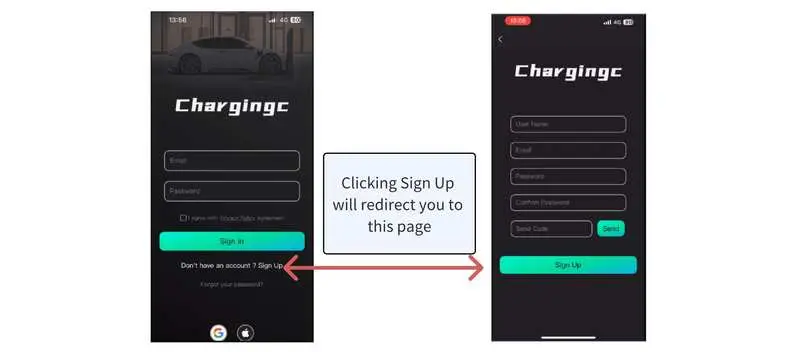
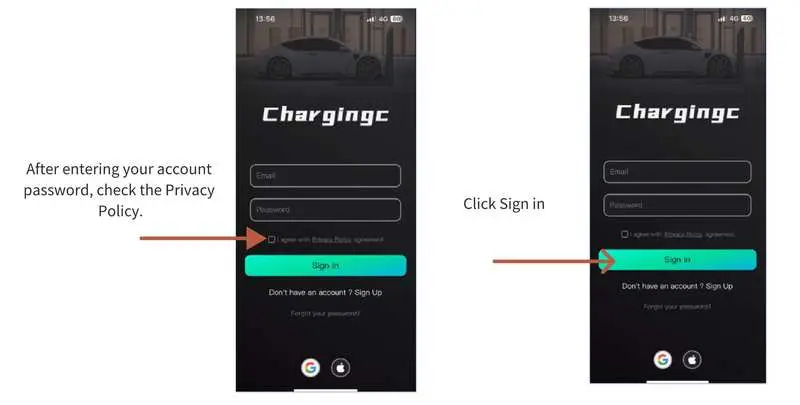
Sign-in steps: Enter the email or account name and the password, and tap Sign in.
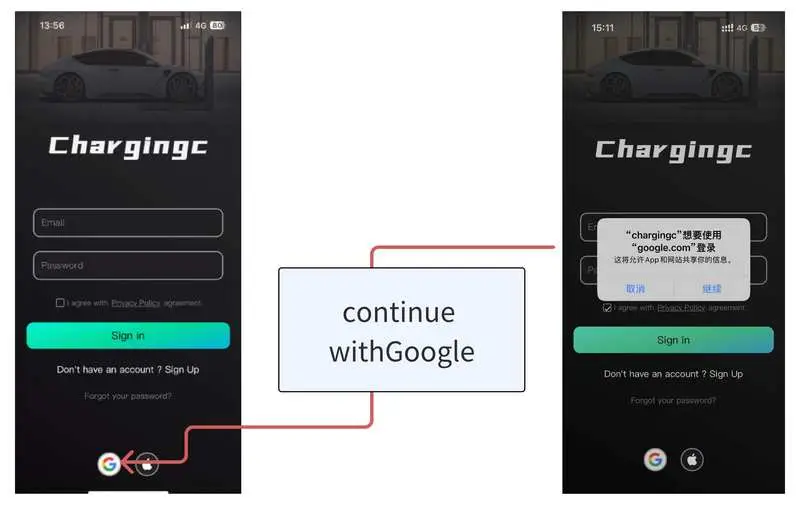
4.1.2 Sign-in with a Google account
Tick the privacy policy, tap Google sign-in and enter your Google account password to confirm sign-in.
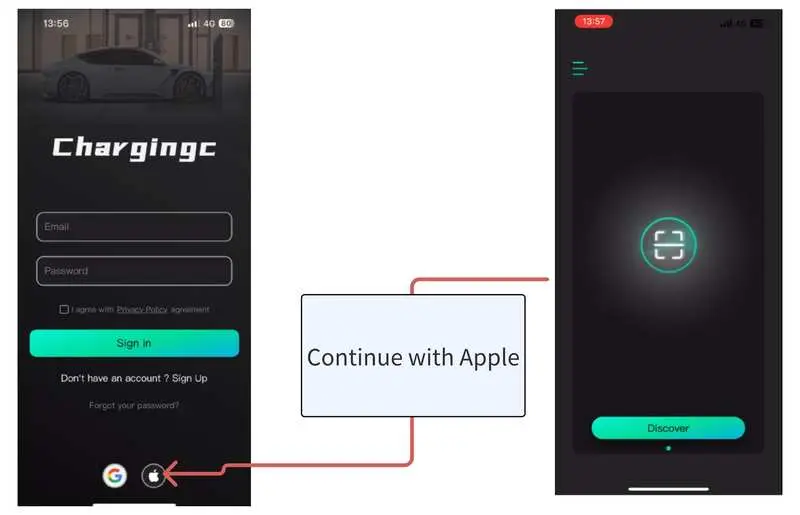
4.1.3 Sign-in with an Apple account
Tick the privacy policy and tap the Apple icon on the sign-in page. After password verification or face recognition, you can sign in directly.
⚠ We recommend agreeing to email collection for better after-sales support.
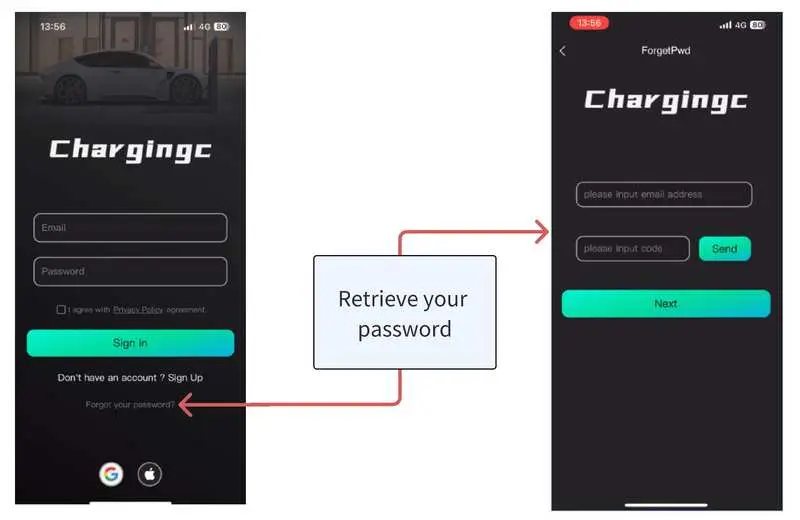
4.1.4 Forgot password
When a customer forgets the password, tap "Forgot password" on the sign-in page. The account name and password will be sent by email.
⚠ This feature only supports users who registered with email.
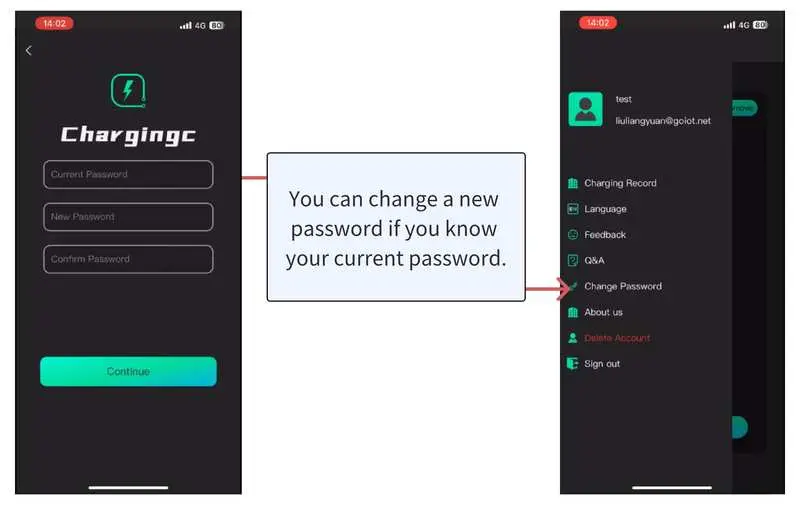
4.1.5 Change password
You need to know the current account password. If you forgot it, go back to the sign-in page and tap "Forgot password".
⚠ This feature only supports users who registered with email.
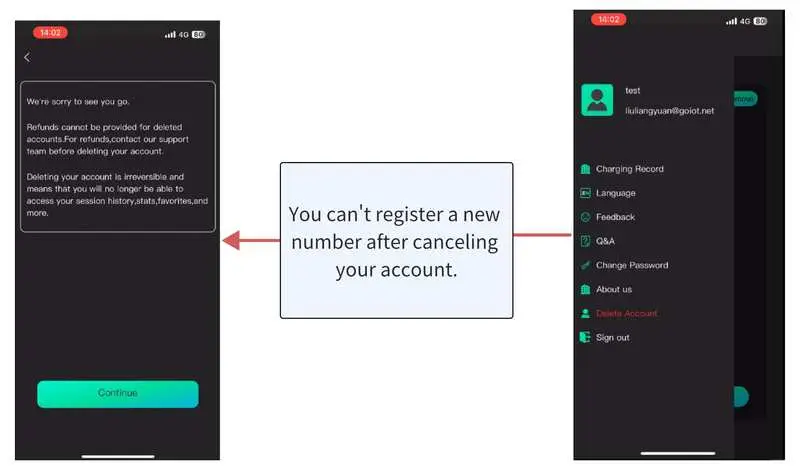
Account deletion
ChargingC will not keep any account data after cancellation. Please use this feature with care.
Device list
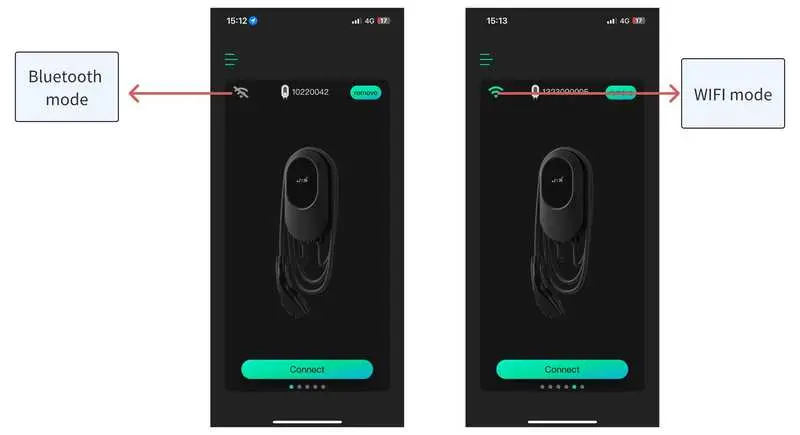
The device list records the devices the user uses. Check whether the WiFi icon appears in green
Green: the device is connected to the network. It can be controlled remotely.
Gray: the device can connect only via Bluetooth. You must stand near the device.
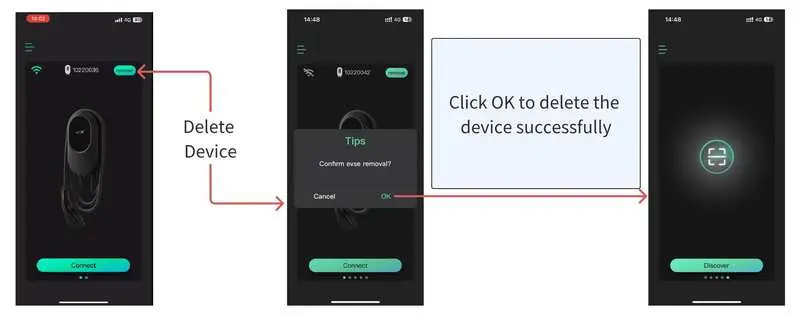
After deleting a device, the pairing must be re-created via a Bluetooth scan:
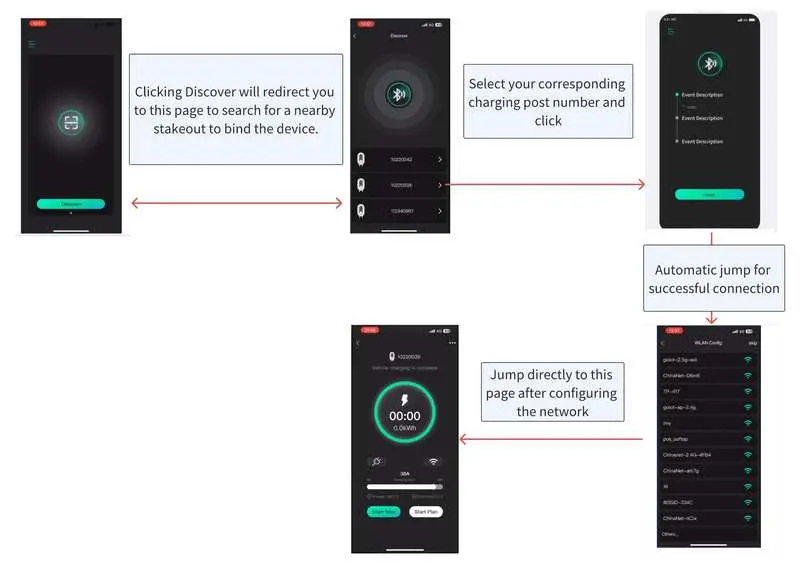
4.3 Adding devices
When using a device for the first time, the user must pair with it. Tap Discover in the device list, select the desired device and enter the initialization page.
⚠ Make sure Bluetooth is on.
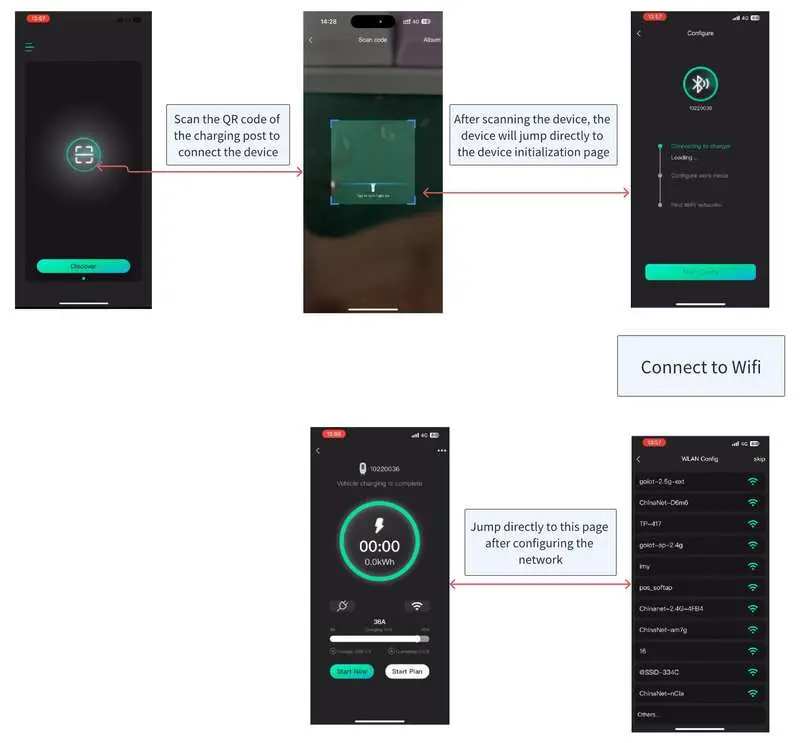
You can also scan the QR code on the charging post to connect the device:
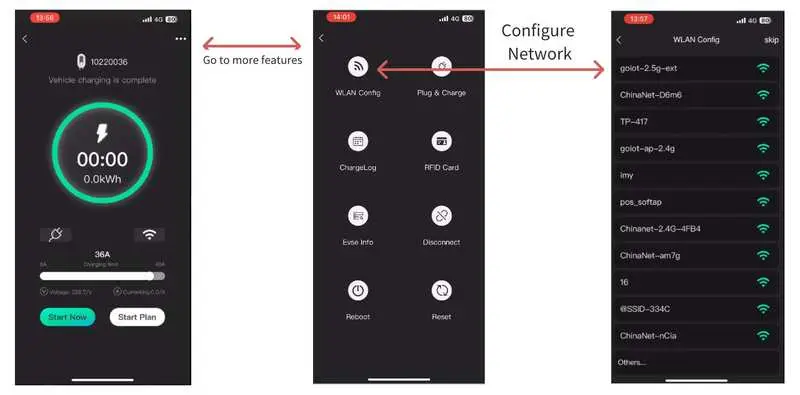
4.4 WLAN network setup
There are two ways to connect and charge: Bluetooth or via the Cloud. WLan settings connect the device to the home WiFi.
⚠ WiFi must be set to the 2.4G band only. This feature supports Bluetooth mode only.
4.5 Instant start/stop charging
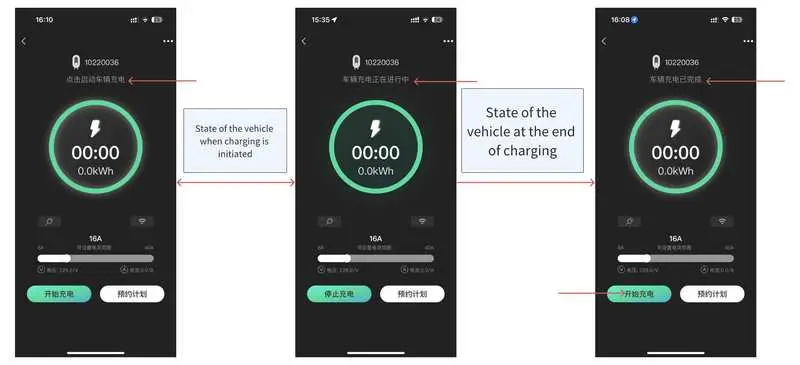
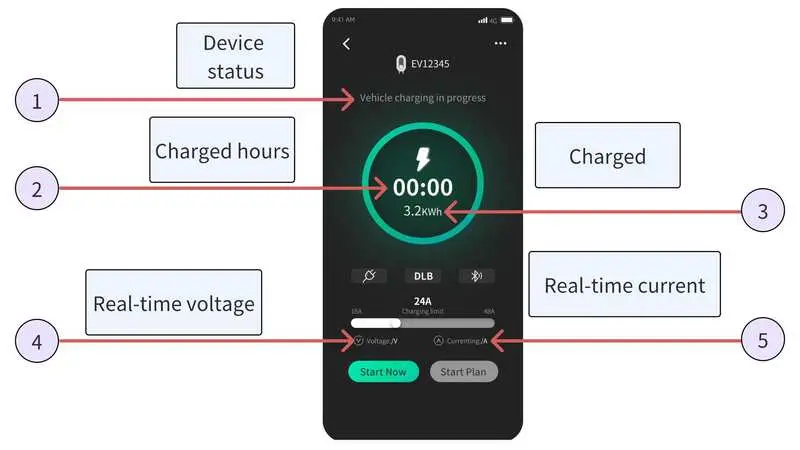
On the charging page, you can quickly start/stop charging.
⚠ The device must be connected to the car beforehand.
Scheduled charging
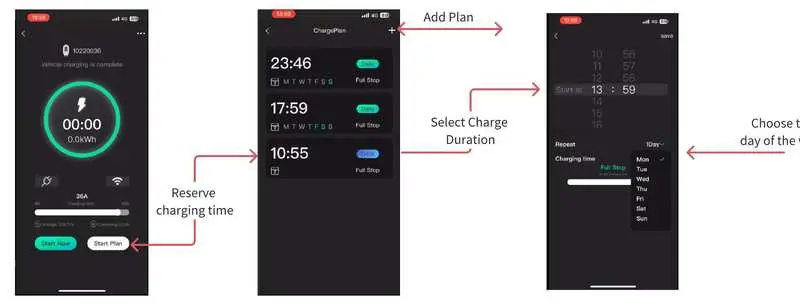
Users can set smart scheduling to start/stop charging automatically:
One-time mode: runs only once.
Repeat mode: repeats weekly on selected days.
⚠ The device must be connected to the car beforehand, otherwise charging won't start.
4.7 Charging with an RFID card
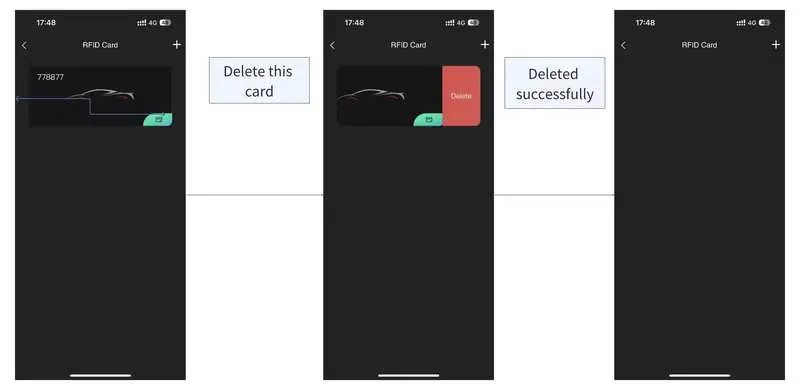
The device supports RFID card swiping. Up to 10 cards can be added (up to 16 digits). Turn off Plug & Play mode to use a card.
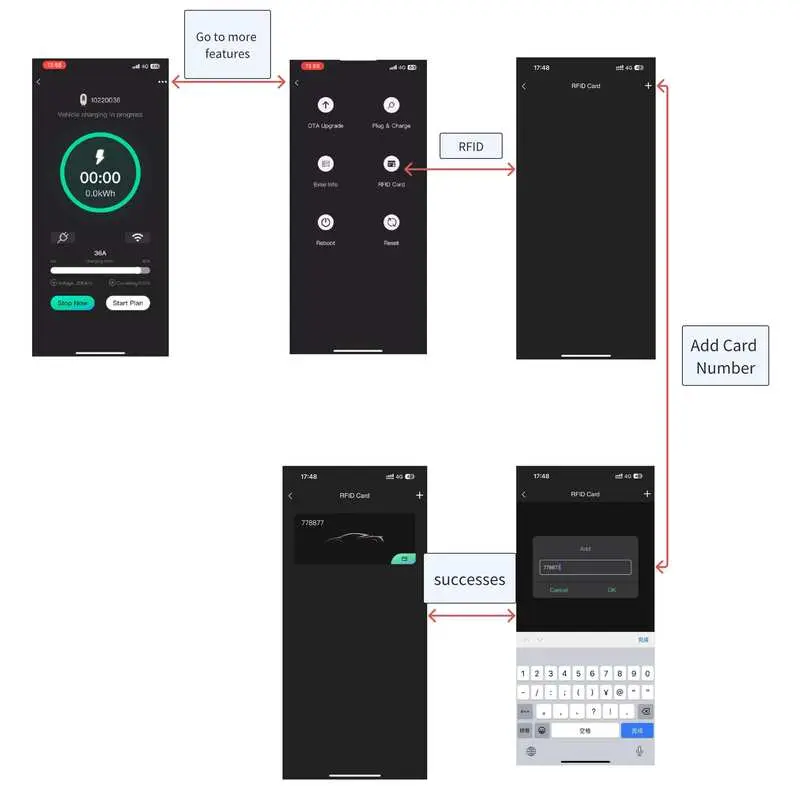
To delete a card: tap, swipe left and tap Delete:
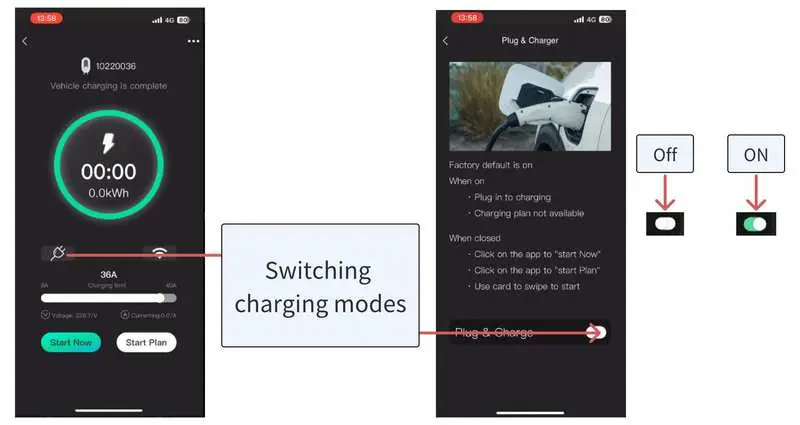
Device mode switching
The charging devices support Plug & Play mode:
Enabled: charging starts when connected to the car.
Off: start via RFID, app or schedule.
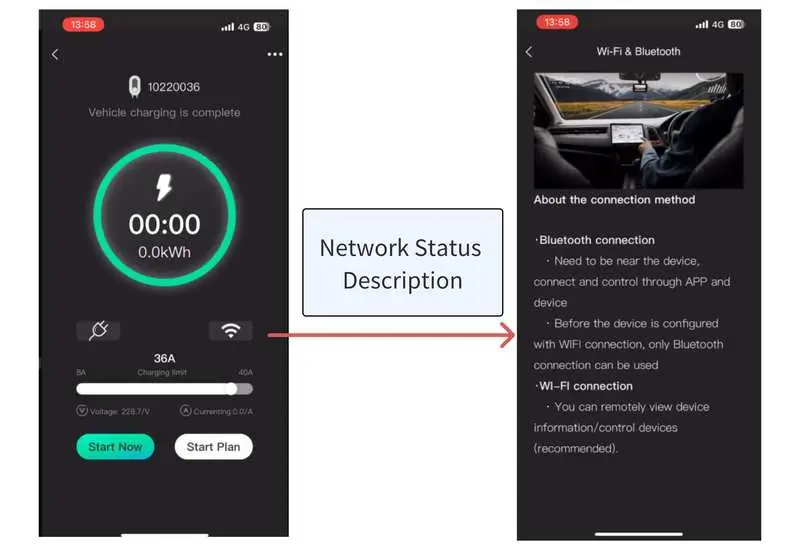
Connection modes
Bluetooth mode: connection through the phone's Bluetooth.
WiFi mode: connection through the cloud.
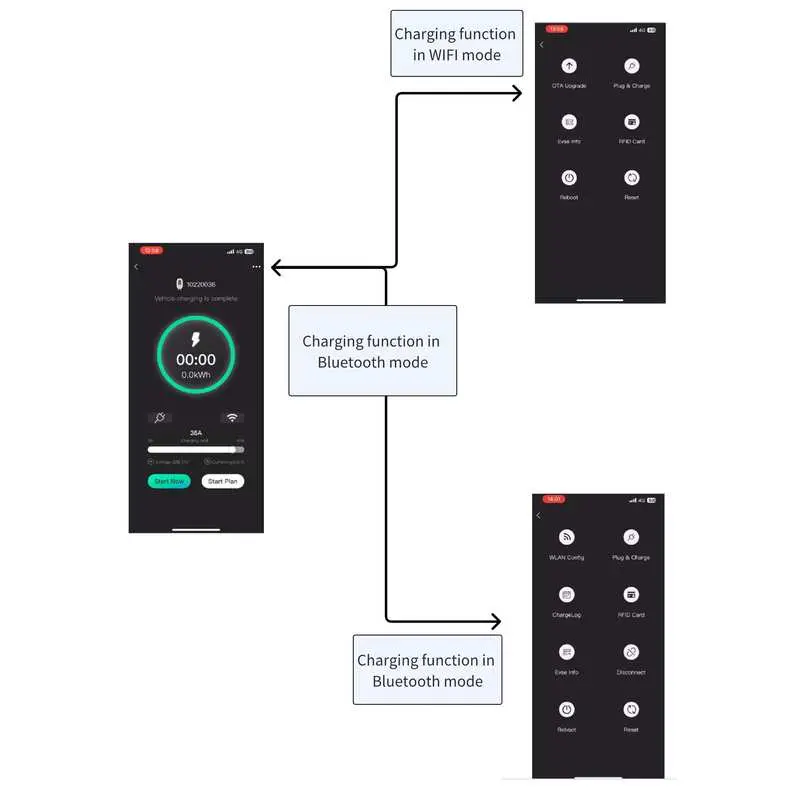
In Bluetooth mode: network settings and charging records. In network mode: remote OTA upgrade.
4.10 Common control functions
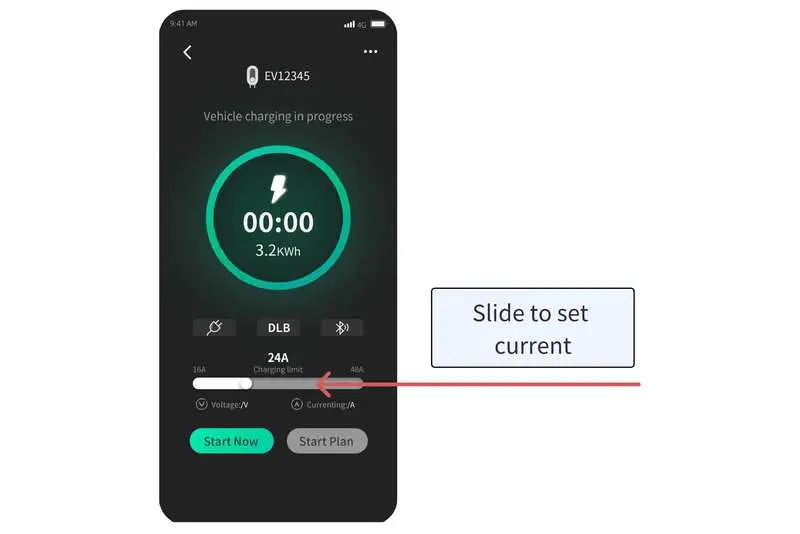
4.10.1 Charging power control
Slide the "Charging Limit" button to set the current:
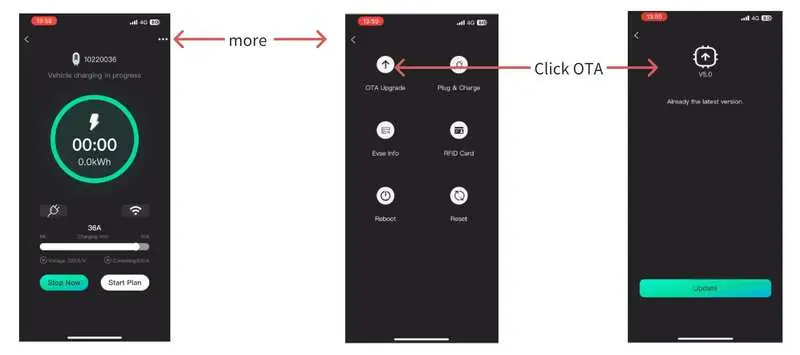
4.10.2 OTA upgrade
In network mode, tap OTA Upgrade for a remote upgrade:
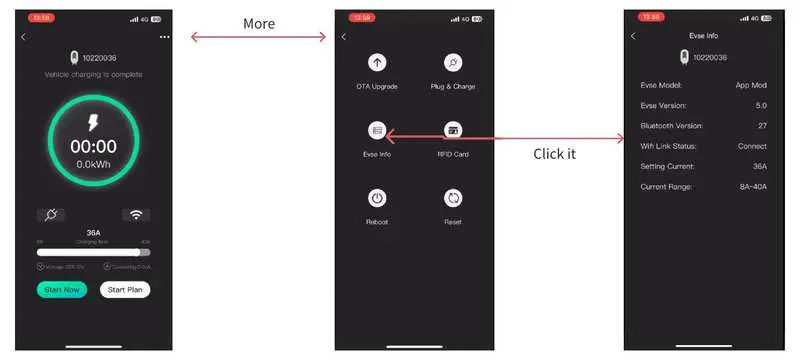
4.10.3 Basic device information
Product model, software version, Bluetooth version, WiFi connection, current and current range:
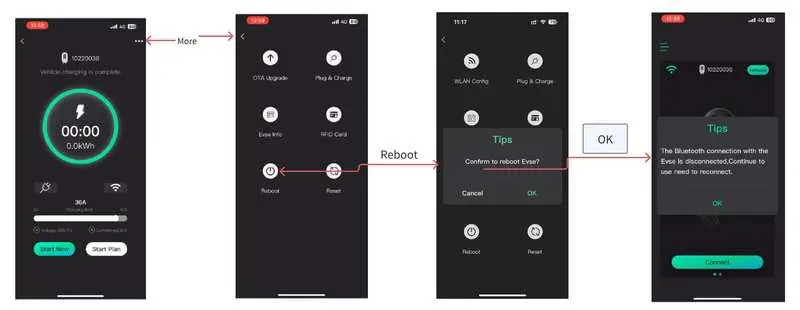
4.10.4 Device restart
The setting parameters require a restart. During the restart the app will return to the connection page:
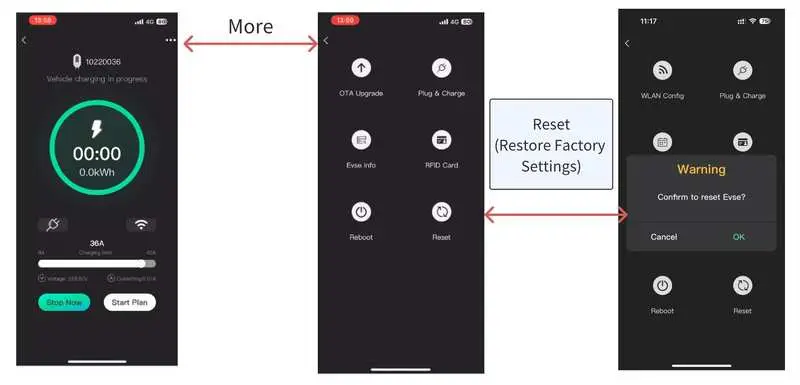
4.10.5 Factory reset
All parameters are erased, the device returns to Plug & Play mode, and RFID cards, schedules and network settings are deleted:
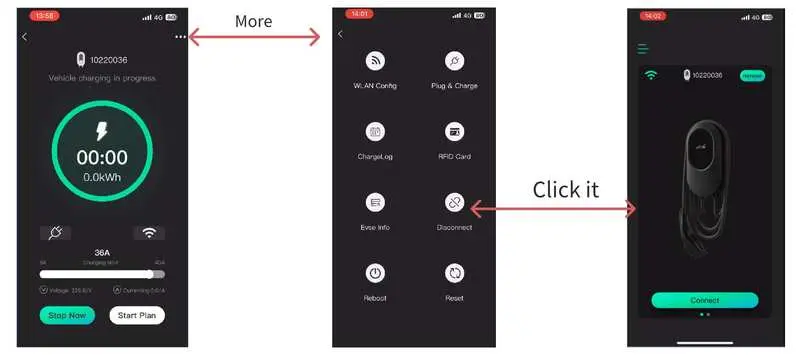
4.10.6 Bluetooth disconnect
Disconnects the Bluetooth connection after WiFi setup. The WiFi icon will light up in the list (wait 2-3 minutes):
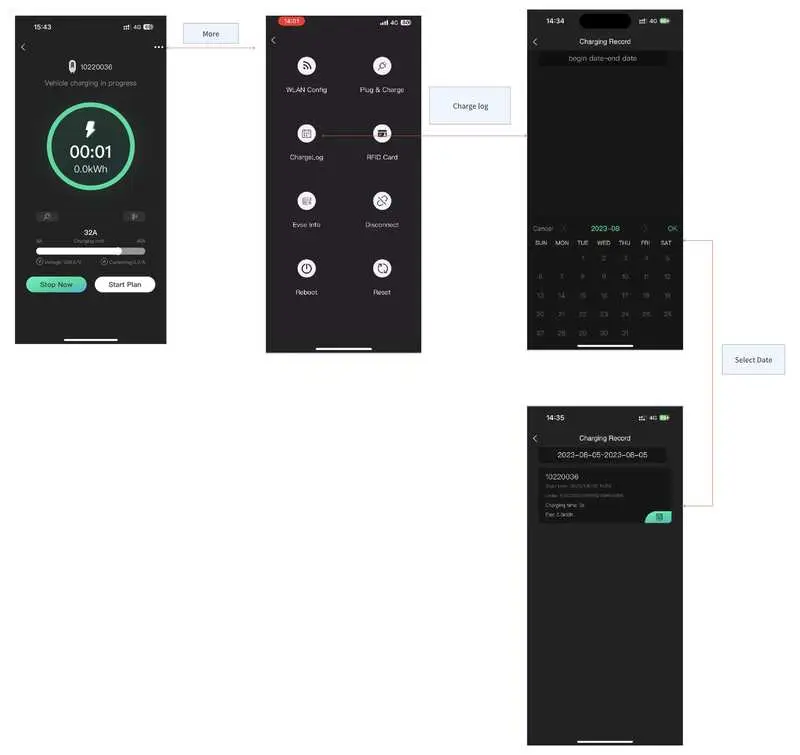
4.11 Charging log
Charging log in Bluetooth mode (by date):
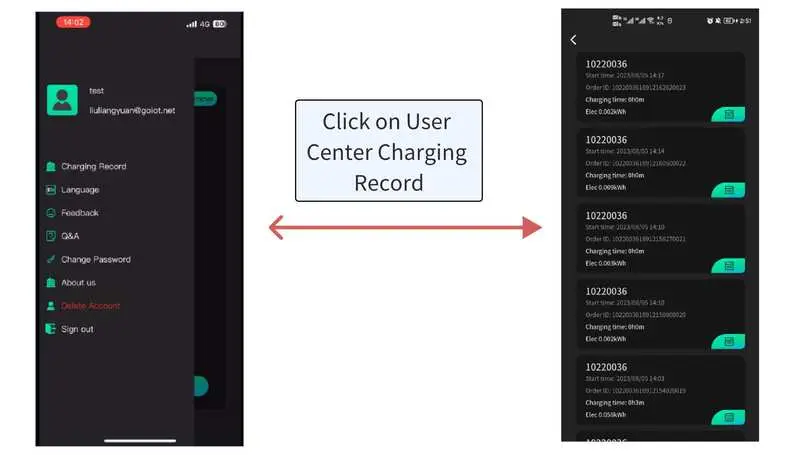
Charging records in the device list (start time, order number, charging duration, amount charged):
4.12 User feedback and support
When the charging post encounters a fault, the charging page will report an error. Tap the error number for details:
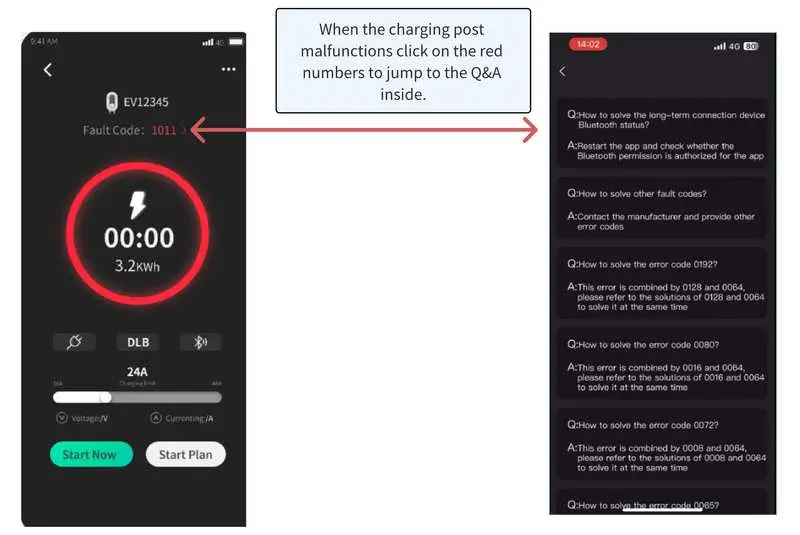
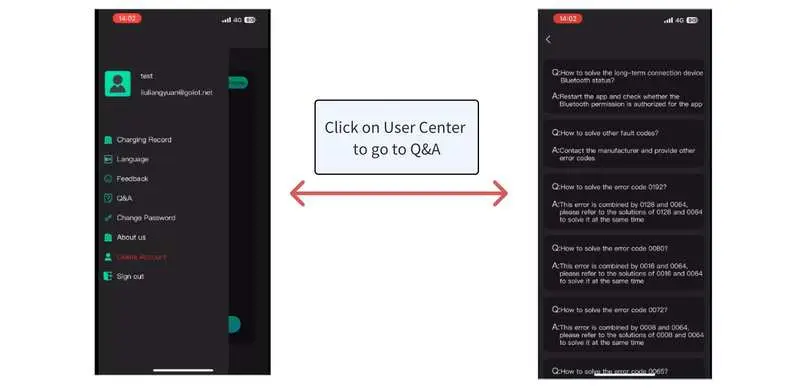
FAQ (Q&A):
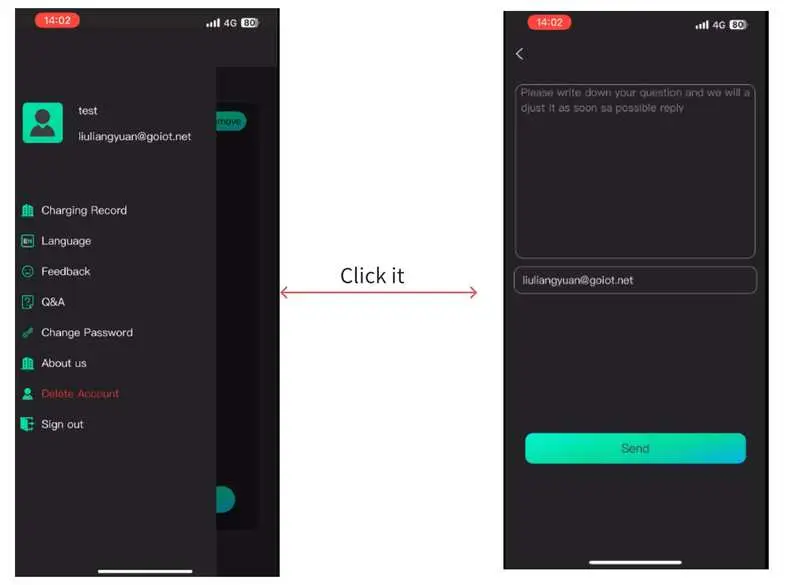
User feedback:
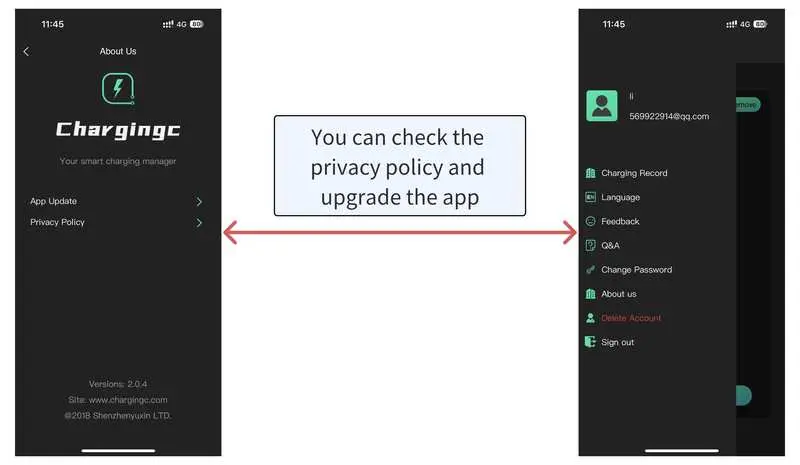
About us - app update and privacy policy:
4.13 International support
The app supports English, Hebrew, French, Arabic and Chinese. After changing the language, the change takes effect.
5. Appendix
5.1 Device states
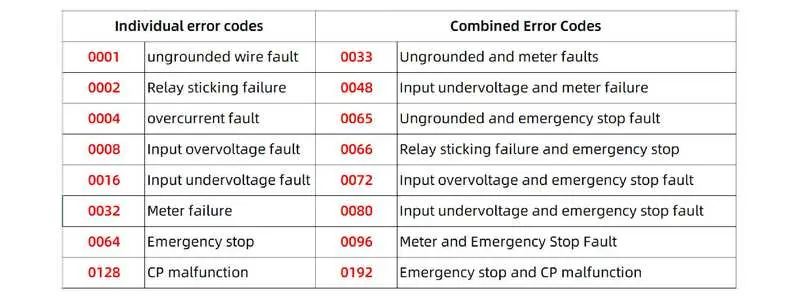
5.2 Error codes (BigInt)
The fault code may be cumulative, for example: 0065 = 0064 + 0001, and 0067 = 0064 + 0001 + 0002.